> ## Documentation Index
> Fetch the complete documentation index at: https://docs.formal.ai/llms.txt
> Use this file to discover all available pages before exploring further.
# Single Sign-On
> Integrate SSO providers for seamless authentication to the Formal console
## Overview
Formal supports Single Sign-On (SSO) integration with major identity providers, enabling your team to access the Formal console using their existing corporate credentials. This streamlines user management and improves security by centralizing authentication.
## Supported Providers
* **Okta**
* **Entra ID SAML**
* **Google Workspace**
* **OneLogin**
* **JumpCloud**
* **Rippling**
* **Ping SAML**
* **Any SAML 2.0 or OIDC provider**
## How It Works
1. **User** clicks "Sign in with SSO" on Formal login page
2. **Formal** redirects to your identity provider
3. **Identity Provider** authenticates the user
4. **User** is redirected back to Formal with authentication token
5. **Formal** creates or updates the user's account and grants access
```mermaid theme={null}
sequenceDiagram
participant User
participant Formal
participant IdP as Identity Provider
User->>Formal: Click "Sign in with SSO"
Formal->>IdP: Redirect to IdP login
IdP->>User: Show login page
User->>IdP: Enter credentials
IdP->>IdP: Authenticate user
IdP-->>Formal: Redirect with SAML assertion
Formal->>Formal: Validate assertion
Formal-->>User: Grant access to console
```
By default, Formal enforces Just-In-Time (JIT) provisioning for SSO. This means that users will be automatically created in Formal when they first authenticate through your SSO provider. If you need to disable this feature, please reach out to Formal support.
## Setup
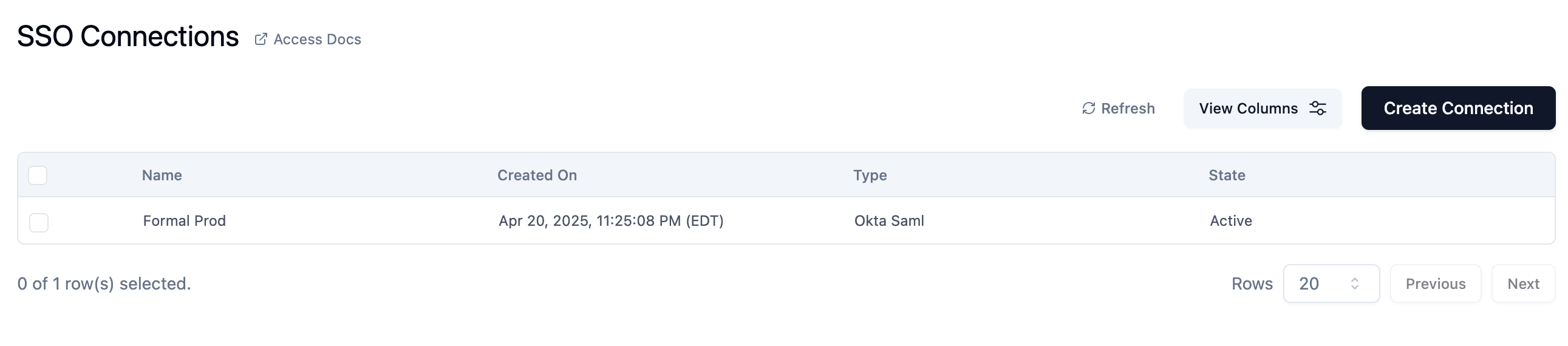
Go to [SSO](https://app.formal.ai/sso) in the Formal console
Click **Add new SSO connection**
Choose your identity provider from the list
Follow the step-by-step instructions: - For **SAML**:
Configure SSO URL, Entity ID, and X.509 certificate - For **OIDC**:
Configure Client ID, Client Secret, and authorization endpoints.
After integration is successful, specify which email domains are allowed for
this SSO connection Example: Add `@example.com` to allow all `*@example.com`
users to sign in via SSO
 ## Domain Configuration
You can specify multiple domains for a single SSO connection.
**Example:**
* Primary domain: `@acme.com`
* Subsidiary domain: `@acme-labs.com`
Both domains will use the same SSO provider and configuration.
## Multiple SSO Providers
Organizations with multiple identity providers (e.g., different subsidiaries) can configure multiple SSO connections:
1. Set up the first SSO connection for Domain A
2. Add a second SSO connection for Domain B
3. Users authenticate based on their email domain
Formal automatically routes users to the correct identity provider based on their email address.
## Directory Sync
For advanced user management, integrate [Directory Sync](/docs/guides/integrations/scim) to automatically sync users and groups from your identity provider to Formal.
Benefits:
* Automatic user provisioning and deprovisioning
* Group membership sync
* User attribute sync (name, email, role)
* Reduced manual administration
## Security Best Practices
Enable MFA in your identity provider for an additional layer of security when
accessing Formal.
Periodically review SSO connections and domain configurations to ensure they
match your current organizational structure.
Review SSO sign-in logs in your identity provider to detect unusual
authentication patterns.
## Next Steps
Automatically provision and deprovision users
## Domain Configuration
You can specify multiple domains for a single SSO connection.
**Example:**
* Primary domain: `@acme.com`
* Subsidiary domain: `@acme-labs.com`
Both domains will use the same SSO provider and configuration.
## Multiple SSO Providers
Organizations with multiple identity providers (e.g., different subsidiaries) can configure multiple SSO connections:
1. Set up the first SSO connection for Domain A
2. Add a second SSO connection for Domain B
3. Users authenticate based on their email domain
Formal automatically routes users to the correct identity provider based on their email address.
## Directory Sync
For advanced user management, integrate [Directory Sync](/docs/guides/integrations/scim) to automatically sync users and groups from your identity provider to Formal.
Benefits:
* Automatic user provisioning and deprovisioning
* Group membership sync
* User attribute sync (name, email, role)
* Reduced manual administration
## Security Best Practices
Enable MFA in your identity provider for an additional layer of security when
accessing Formal.
Periodically review SSO connections and domain configurations to ensure they
match your current organizational structure.
Review SSO sign-in logs in your identity provider to detect unusual
authentication patterns.
## Next Steps
Automatically provision and deprovision users