> ## Documentation Index
> Fetch the complete documentation index at: https://docs.formal.ai/llms.txt
> Use this file to discover all available pages before exploring further.
# Native Users
> How to create and manage native users for your resources
Native users allow you to control which credentials the Connector will use when communicating with a resource.
These credentials can be decoupled from the Formal credentials so that Formal identities do not need to pass these credentials to the Connector.
**gRPC Resources do not support Native Users**. Formal identities should pass
native credentials in addition to (or instead of) their Formal credentials.
Formal Users and Groups can only be assigned one native user. If a Formal Group is assigned a native user, all the Formal Users within it will be assigned that native user.
To avoid ambiguity, a Formal User that has a native user assignment cannot be added to a Formal Group that also has a native user assignment: the user's assignment must be removed first. This is a safety measure to ensure purposeful intent when privileges are modified.
## Create a native user
1. Navigate to the Resources app. In the list of Resources, click on the arrow at the end of the row corresponding to the desired Resource to which you wish to create a native user.
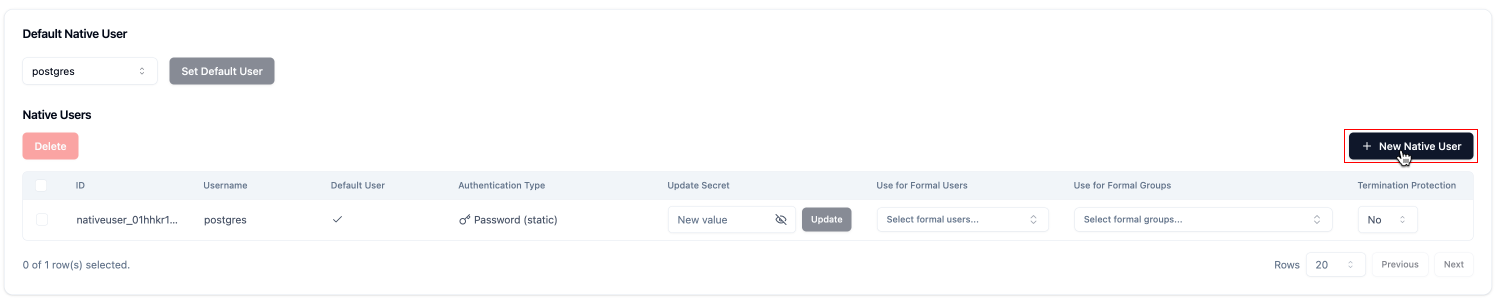
 2. Scroll down to the Native User section and click on the New Native User button.
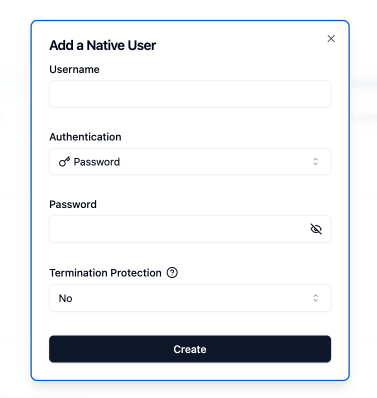
 3. Complete the form by entering the username and password for the native user role.
 ## Configure the password of the native user
To configure the password of the native users, customers have 4 options:
### Password-based authentication
1. Set directly the password, Formal will keep it encrypted in the Control Plane and send it in the configuration of the Connectors.
2. Set it via an environment variable. You can specify the following value in the secret: `ENV:NAME_OF_THE_ENV_VARIABLE_WITH_THE_PASSWORD_OF_THE_USER`
Please make sure that the environment variable is set in the connector's deployment.
### IAM authentication
3. Set the value `iam` for the secret, the Connector will attempt to connect via the IAM role of the running environment. You need to make sure that the Connector has the required permissions.
4. Use IAM authentication with a custom role, the Connector will assume the specified IAM role to connect to the Resource. The value should be the ARN of the IAM role.
## Determine a Native User for a Formal User or Group
You can assign a native user to a Formal User or Group. This will override the default native user configured for the Resource.
1. Navigate to the list of native users in the details of the Resource.
## Configure the password of the native user
To configure the password of the native users, customers have 4 options:
### Password-based authentication
1. Set directly the password, Formal will keep it encrypted in the Control Plane and send it in the configuration of the Connectors.
2. Set it via an environment variable. You can specify the following value in the secret: `ENV:NAME_OF_THE_ENV_VARIABLE_WITH_THE_PASSWORD_OF_THE_USER`
Please make sure that the environment variable is set in the connector's deployment.
### IAM authentication
3. Set the value `iam` for the secret, the Connector will attempt to connect via the IAM role of the running environment. You need to make sure that the Connector has the required permissions.
4. Use IAM authentication with a custom role, the Connector will assume the specified IAM role to connect to the Resource. The value should be the ARN of the IAM role.
## Determine a Native User for a Formal User or Group
You can assign a native user to a Formal User or Group. This will override the default native user configured for the Resource.
1. Navigate to the list of native users in the details of the Resource.
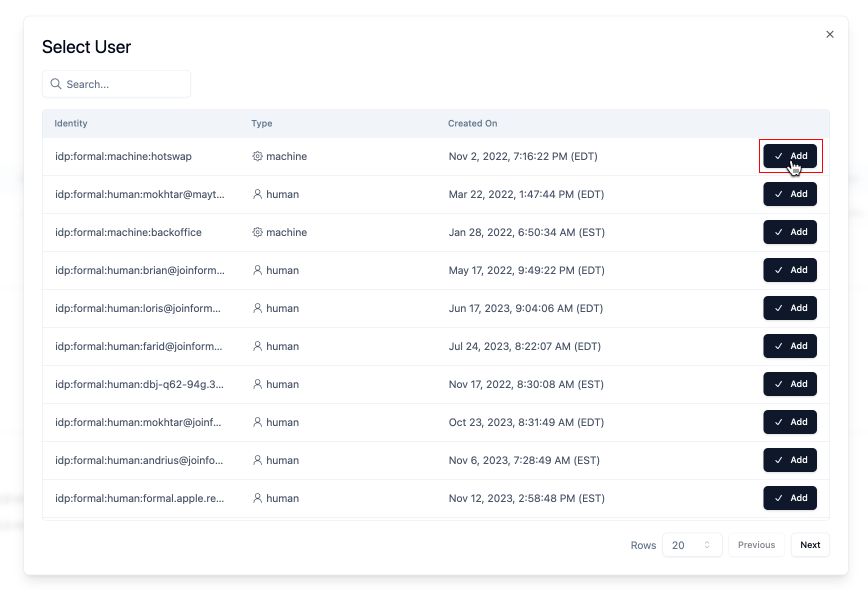
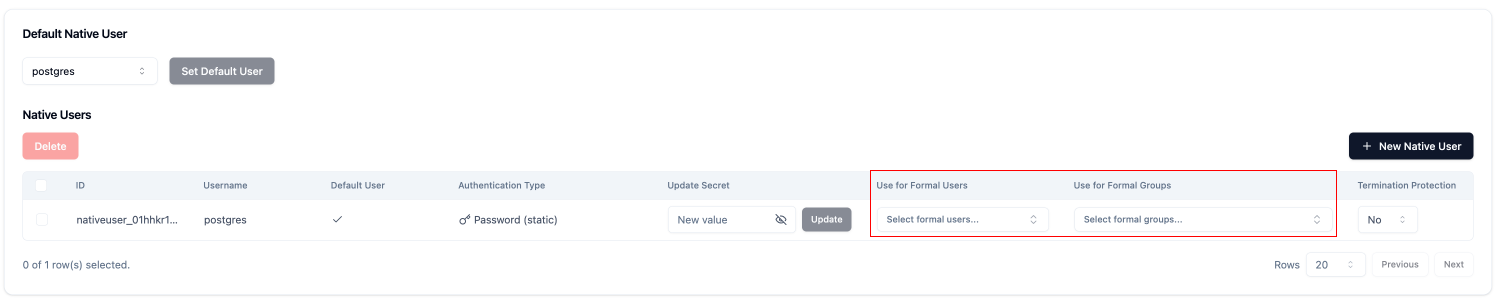 2. Under `Use for Formal Users` or `Use for Formal Groups`, select the desired Formal User or Group by clicking on the input and clicking on `add` next to the desired Formal User or Group.
 ## Create a native user
Use the `formal_native_user` resource to create a native user:
```hcl theme={null}
resource "formal_native_user" "example" {
native_user_id = "readonly"
native_user_secret = "secure_password_123"
resource_id = "resource-123"
use_as_default = true
termination_protection = false
}
```
## Resource Schema
### Required Arguments
* **`native_user_id`** (String) - The username of the native user
* **`native_user_secret`** (String, Sensitive) - The password of the native user
* **`resource_id`** (String) - The Sidecar ID for the resource this native user is for
### Optional Arguments
* **`termination_protection`** (Boolean) - If set to true, this native user cannot be deleted
* **`use_as_default`** (Boolean) - Whether to use this as the default native user for the resource
### Read-Only Attributes
* **`id`** (String) - The ID of the native user
## Example with Environment Variable
```hcl theme={null}
resource "formal_native_user" "readonly_user" {
native_user_id = "readonly"
native_user_secret = "ENV:DB_READONLY_PASSWORD"
resource_id = var.resource_id
use_as_default = true
}
```
## Example with IAM Authentication
```hcl theme={null}
resource "formal_native_user" "iam_user" {
native_user_id = "iam_user"
native_user_secret = "iam"
resource_id = var.resource_id
use_as_default = false
}
```
## Example with Custom IAM Role
```hcl theme={null}
resource "formal_native_user" "custom_role_user" {
native_user_id = "custom_role"
native_user_secret = "arn:aws:iam::123456789012:role/formal-db-role"
resource_id = var.resource_id
use_as_default = false
}
```
## Determine a Native User for a Formal User or Group
You can assign a native user to a Formal User or Group. This will override the default native user configured for the Resource.
```hcl theme={null}
resource "formal_native_user_link" "group_native_user_assignment" {
formal_identity_id = "user_123456abcdef" # formal_user.id, not formal_user.db_username
formal_identity_type = "user"
native_user_id = "nativeuser_123456abcdef" # formal_native_user.id, not formal_native_user.native_user_id
}
```
**Verify:**
```bash theme={null}
terraform plan
terraform apply
```
## Control Which Credentials are Used Between the Connector and the Resource
There are three ways to control which credentials are passed between a Connector and Resource for individual requests:
1. Assign native users to Formal identities in the Control Plane
2. Specify the native user at connection time
3. Use resource credentials at connection time
### Assign Native Users to Formal Identities in the Control Plane
If Formal credentials are passed at connection time, the Connector will determine the relevant native user using the Formal identity.
Specify which native user to use via the Formal console or via Terraform.
### Specify the Native User at Connection Time
To connect using a specific native user, use the following format for your connection username:
```
@
```
For example, if the user `john@joinformal.com` wants to connect to a Postgres database using the native user `readonly`, the connection username would be:
```
idp:formal:human:john@joinformal.com@readonly
```
**Example PostgreSQL connection command:**
```bash theme={null}
psql -h HOSTNAME_OF_CONNECTOR -p 5432 -d DATABASE_NAME -U "idp:formal:human:john@joinformal.com@readonly"
```
**Example MySQL connection command:**
```bash theme={null}
mysql -h HOSTNAME_OF_CONNECTOR -P 3306 -u "idp:formal:human:john@joinformal.com@readonly" -p
```
### Use Resource Credentials at Connection Time
Although not recommended, Formal identities can also pass the credentials of the resource at connection time.
In that case, the Connector will transparently forward these credentials to the resource.
## Understanding Native Users in Logs
If formal identities are used at connection time, the resulting native user username will be specified at `user.formal.native`.
If formal identities are not used, `user.type` will be `native` and the username (if applicable) will be specified in `user.username`.
Accessing resources using native resource role credentials means that the user type will be `native` instead of `formal` and the formal user information
will be empty. In addition, the native resource role's username will be specified at the `user.username` level in logs but `user.native` will be absent.
## Access Control
You can control which users can access which native users through Formal policies.
In particular, you can control which users can access specific native users when they attempt to connect using the `@` syntax.
This is useful for enforcing least-privilege access and preventing users from accessing highly privileged accounts.
The following policy blocks the user `john@joinformal.com` from using the native user `devops`:
```rego theme={null}
package formal.v2
import future.keywords.if
import future.keywords.in
session := {
"action": "block",
"type": "block_with_formal_message"
} if {
input.native_user == "devops"
input.user.email == "john@joinformal.com"
}
```
You can extend this pattern to:
* Block multiple users from specific native users
* Allow only certain users to access privileged native users
* Require additional authentication for certain native users
## Create a native user
Use the `formal_native_user` resource to create a native user:
```hcl theme={null}
resource "formal_native_user" "example" {
native_user_id = "readonly"
native_user_secret = "secure_password_123"
resource_id = "resource-123"
use_as_default = true
termination_protection = false
}
```
## Resource Schema
### Required Arguments
* **`native_user_id`** (String) - The username of the native user
* **`native_user_secret`** (String, Sensitive) - The password of the native user
* **`resource_id`** (String) - The Sidecar ID for the resource this native user is for
### Optional Arguments
* **`termination_protection`** (Boolean) - If set to true, this native user cannot be deleted
* **`use_as_default`** (Boolean) - Whether to use this as the default native user for the resource
### Read-Only Attributes
* **`id`** (String) - The ID of the native user
## Example with Environment Variable
```hcl theme={null}
resource "formal_native_user" "readonly_user" {
native_user_id = "readonly"
native_user_secret = "ENV:DB_READONLY_PASSWORD"
resource_id = var.resource_id
use_as_default = true
}
```
## Example with IAM Authentication
```hcl theme={null}
resource "formal_native_user" "iam_user" {
native_user_id = "iam_user"
native_user_secret = "iam"
resource_id = var.resource_id
use_as_default = false
}
```
## Example with Custom IAM Role
```hcl theme={null}
resource "formal_native_user" "custom_role_user" {
native_user_id = "custom_role"
native_user_secret = "arn:aws:iam::123456789012:role/formal-db-role"
resource_id = var.resource_id
use_as_default = false
}
```
## Determine a Native User for a Formal User or Group
You can assign a native user to a Formal User or Group. This will override the default native user configured for the Resource.
```hcl theme={null}
resource "formal_native_user_link" "group_native_user_assignment" {
formal_identity_id = "user_123456abcdef" # formal_user.id, not formal_user.db_username
formal_identity_type = "user"
native_user_id = "nativeuser_123456abcdef" # formal_native_user.id, not formal_native_user.native_user_id
}
```
**Verify:**
```bash theme={null}
terraform plan
terraform apply
```
## Control Which Credentials are Used Between the Connector and the Resource
There are three ways to control which credentials are passed between a Connector and Resource for individual requests:
1. Assign native users to Formal identities in the Control Plane
2. Specify the native user at connection time
3. Use resource credentials at connection time
### Assign Native Users to Formal Identities in the Control Plane
If Formal credentials are passed at connection time, the Connector will determine the relevant native user using the Formal identity.
Specify which native user to use via the Formal console or via Terraform.
### Specify the Native User at Connection Time
To connect using a specific native user, use the following format for your connection username:
```
@
```
For example, if the user `john@joinformal.com` wants to connect to a Postgres database using the native user `readonly`, the connection username would be:
```
idp:formal:human:john@joinformal.com@readonly
```
**Example PostgreSQL connection command:**
```bash theme={null}
psql -h HOSTNAME_OF_CONNECTOR -p 5432 -d DATABASE_NAME -U "idp:formal:human:john@joinformal.com@readonly"
```
**Example MySQL connection command:**
```bash theme={null}
mysql -h HOSTNAME_OF_CONNECTOR -P 3306 -u "idp:formal:human:john@joinformal.com@readonly" -p
```
### Use Resource Credentials at Connection Time
Although not recommended, Formal identities can also pass the credentials of the resource at connection time.
In that case, the Connector will transparently forward these credentials to the resource.
## Understanding Native Users in Logs
If formal identities are used at connection time, the resulting native user username will be specified at `user.formal.native`.
If formal identities are not used, `user.type` will be `native` and the username (if applicable) will be specified in `user.username`.
Accessing resources using native resource role credentials means that the user type will be `native` instead of `formal` and the formal user information
will be empty. In addition, the native resource role's username will be specified at the `user.username` level in logs but `user.native` will be absent.
## Access Control
You can control which users can access which native users through Formal policies.
In particular, you can control which users can access specific native users when they attempt to connect using the `@` syntax.
This is useful for enforcing least-privilege access and preventing users from accessing highly privileged accounts.
The following policy blocks the user `john@joinformal.com` from using the native user `devops`:
```rego theme={null}
package formal.v2
import future.keywords.if
import future.keywords.in
session := {
"action": "block",
"type": "block_with_formal_message"
} if {
input.native_user == "devops"
input.user.email == "john@joinformal.com"
}
```
You can extend this pattern to:
* Block multiple users from specific native users
* Allow only certain users to access privileged native users
* Require additional authentication for certain native users