> ## Documentation Index
> Fetch the complete documentation index at: https://docs.formal.ai/llms.txt
> Use this file to discover all available pages before exploring further.
# Introduction
> Define the databases, APIs, and infrastructure that Formal protects
## What is a Resource?
A Resource is any system you want to protect with Formal—databases, APIs, Kubernetes clusters, SSH servers, and more. Resources define the endpoints that Connectors can route traffic to and enforce policies on.
## Supported Resource Types
Formal supports a wide range of technologies. [View all supported technologies](/docs/guides/core-concepts/resources/postgres).
Including RDS, Aurora, Supabase, AlloyDB
Including MariaDB, RDS, Aurora
Self-hosted and Atlas
Cloud data warehouse
Google Cloud data warehouse
OLAP database
NoSQL database
Object storage
REST APIs and web services
High-performance RPC framework
Web applications and portals
Linux servers and bastions
Windows remote desktops
K8s clusters (kubectl exec)
## Creating a Resource
Go to [Resources](https://app.formal.ai/resources) in the Formal console
Select the **New Resource** button
* **Name**: A friendly identifier
* **Type**: The technology (PostgreSQL, MongoDB, etc.)
* **Host**: Database hostname or IP address
* **Port**: Connection port (e.g., 5432 for PostgreSQL)
* **Space**: (Optional) Logical grouping for access control
* Enable **Termination Protection** to prevent accidental deletion
* Set up **Native Users** for database authentication
* Configure **TLS** if needed
* Add **Aliases** for easier resource identification when connecting with the desktop app
* Add **Tags** for resource categorization and policy inputs
```hcl theme={null}
resource "formal_resource" "production_postgres" {
name = "production-postgres"
technology = "postgres"
hostname = "prod-db.us-east-1.rds.amazonaws.com"
port = 5432
space_id = formal_space.production.id
# Optional: Termination protection
termination_protection = true
# Optional: Tags
tags = {
environment = "production"
team = "backend"
}
# Optional: Aliases
aliases = ["prod-postgres", "backend-postgres"]
}
```
Your resource doesn't need to be publicly accessible. The Connector reaches it
from within your VPC.
## Testing Resource Connectivity
You can test resource connectivity directly from the Formal console to verify that your resources are accessible and properly configured.
### Test Connection from Resource Details
1. Navigate to [Resources](https://app.formal.ai/resources) in the Formal Console
2. Click on the resource you want to test
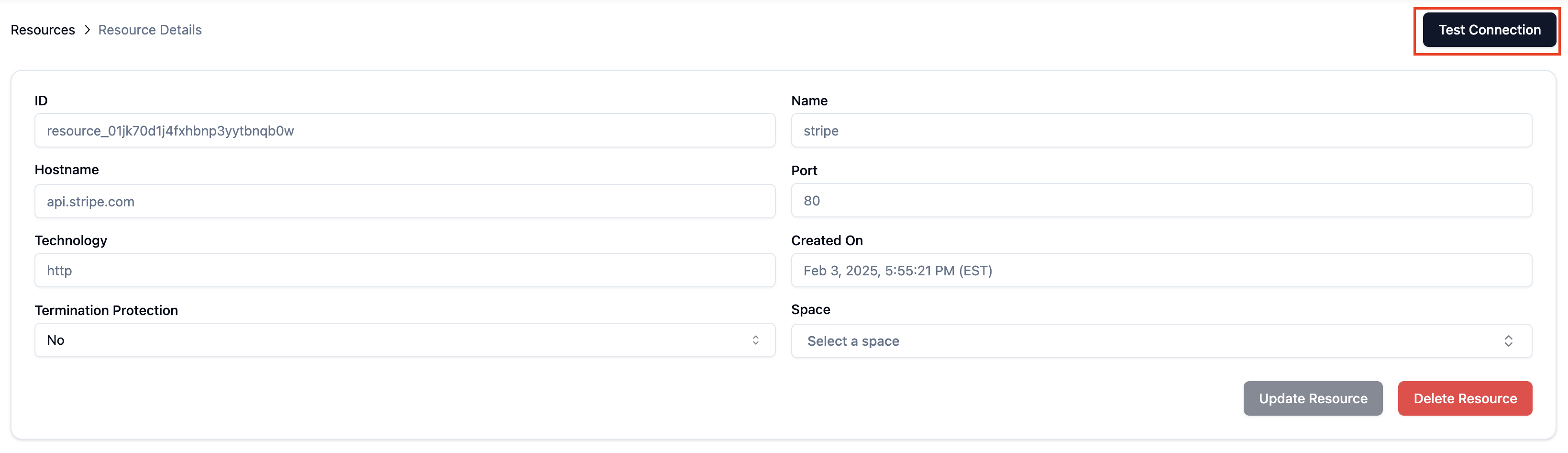
3. In the **Resource Details** page, click the **Test Connection** button in the top-right corner
4. The system will attempt to connect to your resource and display the results
 ### Test Specific Connectors
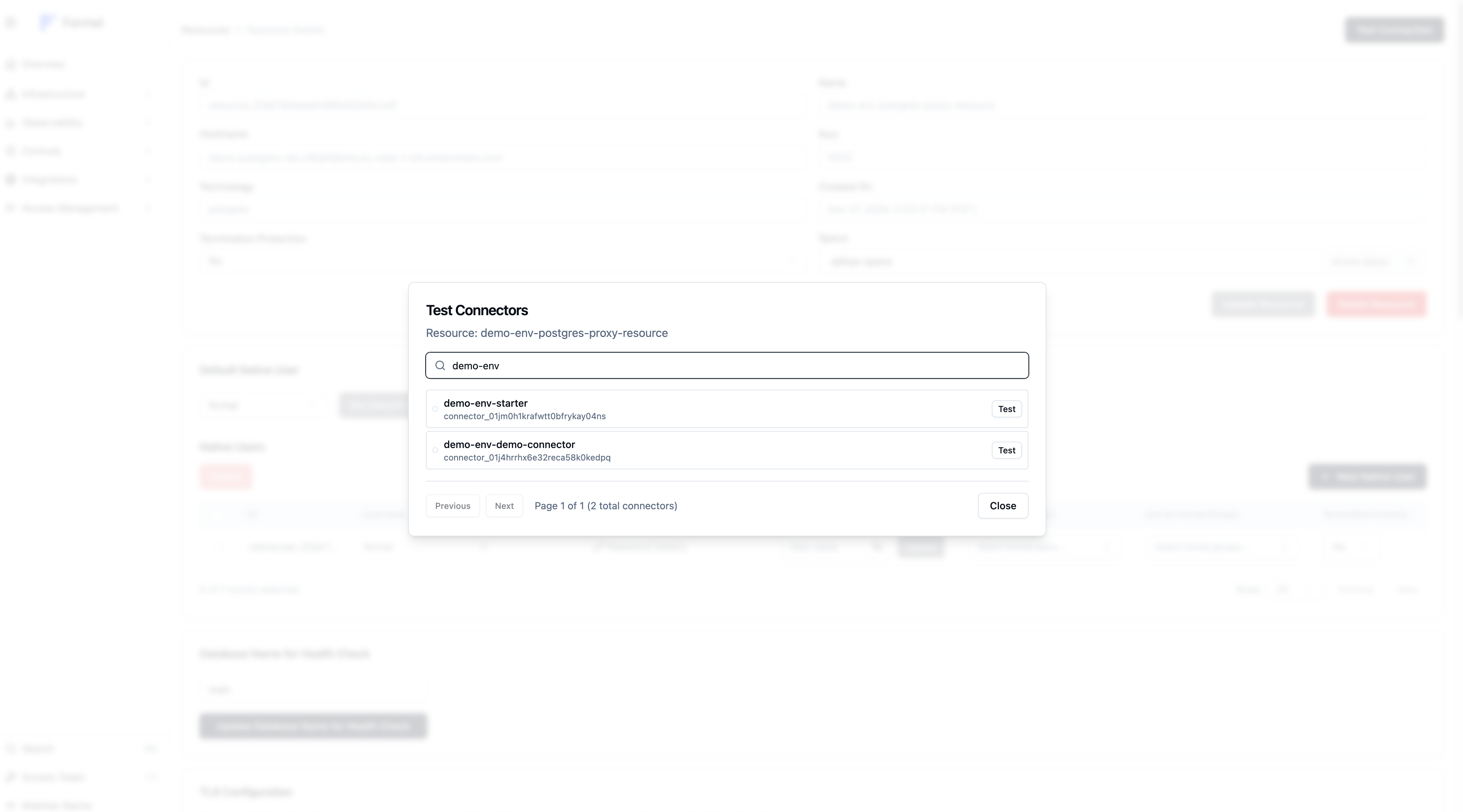
1. From the Resource Details page, click **Test Connectors**
2. Select the connector you want to test from the list
3. Click **Test** to initiate a health check for that specific connector
4. Monitor the test status - you'll see "Testing..." with a spinner during the test
5. Review the results to identify any connectivity issues
### Test Specific Connectors
1. From the Resource Details page, click **Test Connectors**
2. Select the connector you want to test from the list
3. Click **Test** to initiate a health check for that specific connector
4. Monitor the test status - you'll see "Testing..." with a spinner during the test
5. Review the results to identify any connectivity issues
 ### Configure Health Check Database
For database resources, you can specify which database to use for health checks:
1. In the Resource Details page, scroll to the **Database Name for Health Check** section
2. Enter the database name (e.g., "main", "postgres", "mysql")
3. Click **Update Database Name for Health Check** to save the configuration
4. This database will be used for all subsequent health checks
If you leave this field empty, MySQL defaults to `mysql` and Postgres defaults to `postgres`.
Formal connects to that database and runs `SELECT 1`.
The native user must have permission to connect to the selected database.
### Understanding Test Results
#### Successful Connection Test
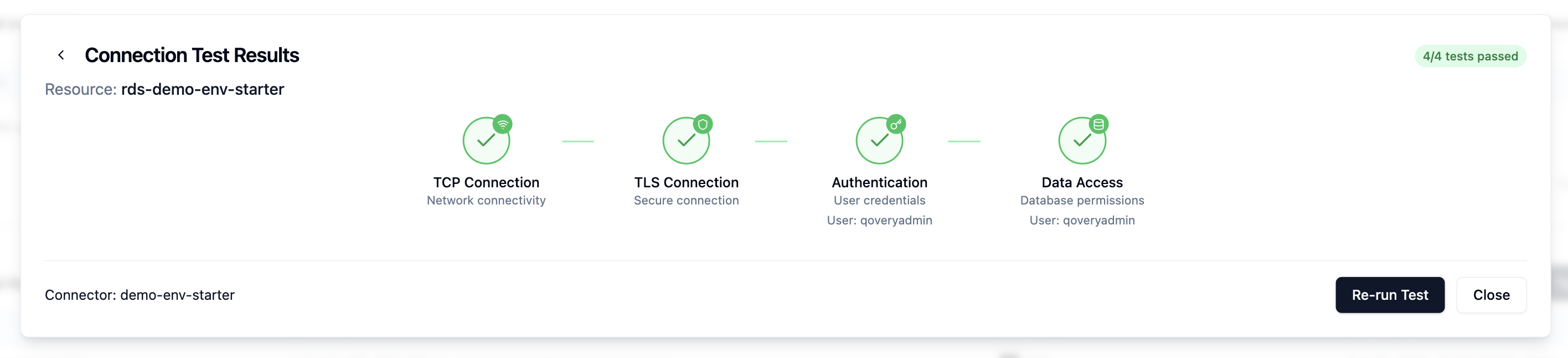
When all tests pass, you'll see a green "3/3 tests passed" indicator and a multi-stage validation flow:
1. **TCP Connection** - Verifies network connectivity to the resource
2. **TLS Check** - Protocol-specific TLS handshake validation (when applicable)
3. **Configuration Check** - Validates health check settings
4. **Authentication** - Validates user credentials (shows the authenticated user)
5. **Data Access** - Confirms database permissions for the user
The test results will show:
* Connector name and instance information
* Each validation stage with green checkmarks
* Specific user details for authentication and data access
* Resource identification
### Configure Health Check Database
For database resources, you can specify which database to use for health checks:
1. In the Resource Details page, scroll to the **Database Name for Health Check** section
2. Enter the database name (e.g., "main", "postgres", "mysql")
3. Click **Update Database Name for Health Check** to save the configuration
4. This database will be used for all subsequent health checks
If you leave this field empty, MySQL defaults to `mysql` and Postgres defaults to `postgres`.
Formal connects to that database and runs `SELECT 1`.
The native user must have permission to connect to the selected database.
### Understanding Test Results
#### Successful Connection Test
When all tests pass, you'll see a green "3/3 tests passed" indicator and a multi-stage validation flow:
1. **TCP Connection** - Verifies network connectivity to the resource
2. **TLS Check** - Protocol-specific TLS handshake validation (when applicable)
3. **Configuration Check** - Validates health check settings
4. **Authentication** - Validates user credentials (shows the authenticated user)
5. **Data Access** - Confirms database permissions for the user
The test results will show:
* Connector name and instance information
* Each validation stage with green checkmarks
* Specific user details for authentication and data access
* Resource identification
 ### Health Check Stages Explained
Each health check performs multiple validation stages to ensure complete connectivity:
**TCP Check**: Basic network connectivity verification
* Verifies the connector can reach the resource endpoint
* Tests basic network connectivity
**TLS Check**: TLS/SSL handshake verification
* Only applicable to TLS-enabled resources
* Validates certificate and encryption setup
**Configuration Check**: Configuration validation
* Verifies health check configuration is valid
* Checks database name and other settings
**Authentication Check**: Authentication verification
* Tests authentication using configured native users
* Includes AWS IAM authentication for RDS resources
**Data Access Check**: Data access verification
* Runs `SELECT 1` against the configured health check database
* Confirms the connector can interact with the resource
#### Failed Connection Tests
When tests fail, you'll see error indicators and specific failure messages:
* **Timeout**: Resource could not be reached - check network configuration and firewall rules such as a security group in a cloud environment
* **Authentication Failed**: Verify credentials and native user configuration
* **Database Not Found**: Ensure the specified database exists and is accessible
### Health Check Stages Explained
Each health check performs multiple validation stages to ensure complete connectivity:
**TCP Check**: Basic network connectivity verification
* Verifies the connector can reach the resource endpoint
* Tests basic network connectivity
**TLS Check**: TLS/SSL handshake verification
* Only applicable to TLS-enabled resources
* Validates certificate and encryption setup
**Configuration Check**: Configuration validation
* Verifies health check configuration is valid
* Checks database name and other settings
**Authentication Check**: Authentication verification
* Tests authentication using configured native users
* Includes AWS IAM authentication for RDS resources
**Data Access Check**: Data access verification
* Runs `SELECT 1` against the configured health check database
* Confirms the connector can interact with the resource
#### Failed Connection Tests
When tests fail, you'll see error indicators and specific failure messages:
* **Timeout**: Resource could not be reached - check network configuration and firewall rules such as a security group in a cloud environment
* **Authentication Failed**: Verify credentials and native user configuration
* **Database Not Found**: Ensure the specified database exists and is accessible
 ### Updating Resources
Changes to resources (hostname, port, space, etc.) take effect immediately for new connections. Active sessions continue using old settings until they reconnect.
### Deleting Resources
Resources with **Termination Protection** enabled cannot be deleted until
protection is disabled.
Before deleting a resource:
1. Check for active sessions
2. Remove it from any Connector listener rules
3. Disable termination protection if enabled
4. Confirm deletion
## Spaces and Resources
Resources can be assigned to a [Space](/docs/guides/core-concepts/spaces) to limit which Connectors can access them:
* **Resource with a Space**: Only Connectors in the same Space can access it
* **Resource without a Space**: Any Connector can access it
This allows you to create network segmentation and isolation patterns that match your infrastructure.
### Updating Resources
Changes to resources (hostname, port, space, etc.) take effect immediately for new connections. Active sessions continue using old settings until they reconnect.
### Deleting Resources
Resources with **Termination Protection** enabled cannot be deleted until
protection is disabled.
Before deleting a resource:
1. Check for active sessions
2. Remove it from any Connector listener rules
3. Disable termination protection if enabled
4. Confirm deletion
## Spaces and Resources
Resources can be assigned to a [Space](/docs/guides/core-concepts/spaces) to limit which Connectors can access them:
* **Resource with a Space**: Only Connectors in the same Space can access it
* **Resource without a Space**: Any Connector can access it
This allows you to create network segmentation and isolation patterns that match your infrastructure.