> ## Documentation Index
> Fetch the complete documentation index at: https://docs.formal.ai/llms.txt
> Use this file to discover all available pages before exploring further.
# Identities
> Manage users and groups
## Overview
This page covers how to create and manage identities in Formal.
There are two types of identities in Formal:
* **Users**: Individual human or machine identities
* **Groups**: Collections of users for streamlined permission management
**Native Users are not identities**: Native users are a separate concept from identities.
While identities (users and groups) represent who is accessing resources through Formal, native users hold
the credentials Connectors use to authenticate to the underlying resources (databases, servers, etc.).
To learn more about native users, refer to [our Native Users documentation](/docs/guides/core-concepts/resources/native_users).
## Users
Users represent identities that connect to resources through Formal Connectors. Every query, command, or API call can be attributed to a specific user for auditing and policy enforcement.
### User Types
**Human Users** are for employees who need direct access to protected resources.
They can be invited manually but often organizations provision those users via SCIM or SSO (Formal supports JIT provisioning via SSO).
They can then retrieve their username and access token from the Formal console to connect through Connectors.
**Use cases:**
* Engineers querying production databases
* Analysts accessing data warehouses
* DevOps teams managing infrastructure via SSH
**Machine Users** are for applications, BI tools, and automated systems that
connect to resources. Unlike human users, machine users don't receive email
invitations and can have longer-lived credentials.
**Use cases:**
* Internal applications querying databases
* BI tools like Looker, Metabase, Tableau
* CI/CD pipelines accessing infrastructure
* ETL jobs moving data
* AI code agents
### Creating Users
Go to [Users](https://app.formal.ai/users) in the Formal console
Select **New User** button
Choose **Human** or **Machine**
* **Name**: Full name or application name - **Email**: For human users
(receives credentials) - **Temporary**: (Optional) Set expiration time for
temporary access - **Groups**: (Optional) Add to groups
Temporary users are automatically deleted after the specified time—perfect for
contractors or time-limited access grants.
### Access Tokens
Formal decouples credentials from underlying resources, enabling each user to have their own set of short-lived, rotating credentials.
#### Default Validity Period
**7 days** - Access tokens automatically expire and must be refreshed.
#### Configuring Token Validity
To adjust the validity period for your organization, contact Formal support. Organization administrators are authorized to make this request.
### Accessing Formal Credentials
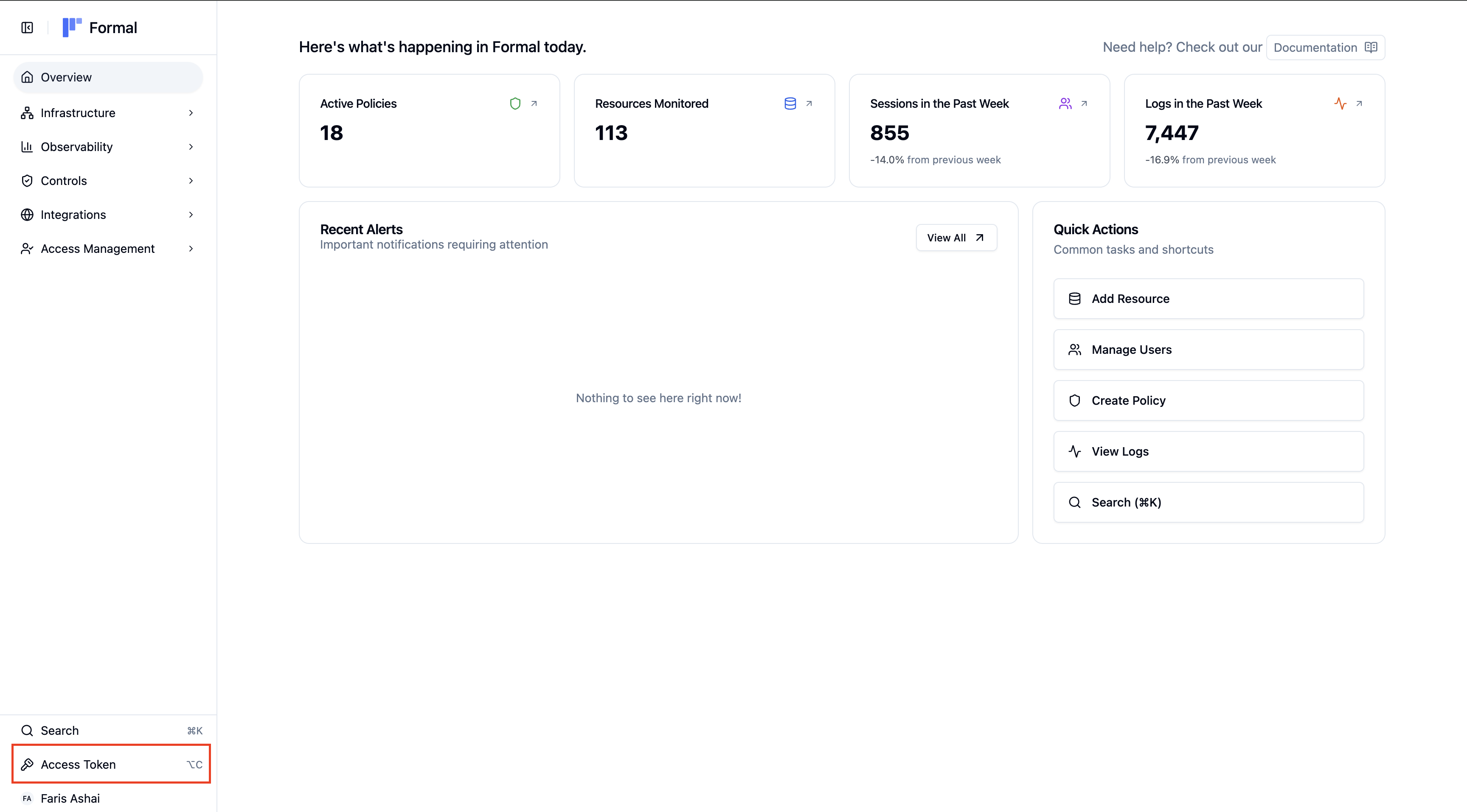
1. Navigate to [the Formal console](https://app.formal.ai)
2. Click the **Access Token** button in the bottom right corner
3. Copy your credentials (username and access token)
 ```bash theme={null}
formal auth credentials
```
This displays your Formal username and
access token for connecting through Connectors.
#### Passing Formal Credentials
Connect to resources using your Formal credentials:
```bash theme={null}
# PostgreSQL example
psql -h connector.joinformal.com -p 5432 \
-U "idp:formal:human:alice@example.com" \
-d production_db
# Password:
```
#### Using Hashed Access Tokens
Some database clients have limitations with password length. For example, the standard `mysql` and `mariadb` CLI clients don't support passwords longer than 80 characters when using the `-p` (interactive password) option. Since Formal access tokens typically exceed this limit, you'll need to use hashed tokens instead.
**What are hashed tokens?**
Hashed tokens are shortened versions of your full access tokens that are compatible with clients that have password length restrictions. They maintain the same security properties while working within these constraints.
**How to obtain a hashed token:**
1. Navigate to [the Formal console](https://app.formal.ai)
2. Click the **Access Token** button in the bottom right corner
3. Click on **Hashed Access Token** to view your hashed token
4. Copy the hashed token for use with restricted clients
**When to use hashed tokens:**
* MySQL/MariaDB CLI clients with the `-p` flag
* Other database clients that limit password length
* Legacy applications with password field restrictions
Hashed tokens have the same access level as your full access token. Treat them with the same security precautions and never share them.
### Using End User Identities
There may be times when a machine identity interacting with the Connector is itself making requests on behalf of *end users*. For example, you may
want to control access to a Retool dashboard. Various technologies support the notion of *end user identities* where the machine user can map a request
to a separate Formal user identity. For more information on how to specify the end user, refer to the resource page for that particular technology.
End user identities do not require the machine identity to have access to the end user identity's access token. As a result,
when looking at end user identities, the machine identity needs to be trusted when writing policies against end users.
**External IDs** solve this by mapping end-user identities from external systems to Formal users:
Map the user's ID in your BI tool (e.g., Looker user ID 12345) to their
Formal user
Update your application to propagate the end-user ID when connecting through
Formal. Formal provides SDKs to simplify this:
* [formal-sqlcommenter for Python/Django](https://pypi.org/project/formal-sqlcommenter/)
* Built-in integrations for Metabase, Looker, and more
Check [Logs](/docs/guides/observability/logs) to confirm queries are
attributed to the correct end user
This enables accurate auditing and per-user policy enforcement even when using shared application credentials.
## Groups
Groups allow you to apply policies and native user assignments to multiple users simultaneously, streamlining permission management.
Write policies once for a group instead of per-user
Ensure all group members have the same permissions
Assign database credentials at the group level
Users can belong to multiple groups
### Creating Groups
Go to [Groups](https://app.formal.ai/groups) in the Formal console
Create a new group
Choose a descriptive name (e.g., "Engineering Team", "Analytics", "External
Contractors")
Select users to add to the group
### Managing Group Membership
Click on a group in the Groups list
Select users from the dropdown to add them, or remove existing members
A user can be part of multiple groups. Their effective permissions are the
union of all group policies plus any user-specific policies.
## Best Practices
Create groups that match your organizational structure (teams, departments,
roles). This makes policy management scalable as your organization grows.
Set expiration dates for external contractors or time-limited access needs.
Formal automatically cleans up expired users.
Ensure end-user accountability even when using shared application credentials.
This is critical for compliance and security auditing.
Never share human user credentials with applications. Create dedicated machine
users for each application or service.
Prefer group-based native user assignments over individual assignments. This
reduces configuration complexity.
## Configuration
Manage users and groups through the Formal console at:
* [Users](https://app.formal.ai/users)
* [Groups](https://app.formal.ai/groups)
```hcl theme={null}
# Create users
resource "formal_user" "alice" {
name = "Alice Smith"
email = "alice@example.com"
type = "human"
}
resource "formal_user" "bi_tool" {
name = "Looker Application"
type = "machine"
}
# Create groups
resource "formal_group" "engineering" {
name = "Engineering Team"
}
# Add users to groups
resource "formal_group_user_link" "alice_eng" {
group_id = formal_group.engineering.id
user_id = formal_user.alice.id
}
```
## Understanding Identities in Logs
Individual logs will specify which identity was used. If a formal identity was used,
the resulting `user` field will have `user.type` equal to `formal`. In addition,
`user.formal` will be populated with the identity. `user.formal.type` will specify whether the identity will be `human` or `machine`.
If a Formal identity is not specified, `user.formal` will be empty and `user.type` will be `native`.
## Next Steps
Map Formal users to resource credentials
Control access based on users and groups
Enable end-user attribution for BI tools
See what users are accessing in real-time
```bash theme={null}
formal auth credentials
```
This displays your Formal username and
access token for connecting through Connectors.
#### Passing Formal Credentials
Connect to resources using your Formal credentials:
```bash theme={null}
# PostgreSQL example
psql -h connector.joinformal.com -p 5432 \
-U "idp:formal:human:alice@example.com" \
-d production_db
# Password:
```
#### Using Hashed Access Tokens
Some database clients have limitations with password length. For example, the standard `mysql` and `mariadb` CLI clients don't support passwords longer than 80 characters when using the `-p` (interactive password) option. Since Formal access tokens typically exceed this limit, you'll need to use hashed tokens instead.
**What are hashed tokens?**
Hashed tokens are shortened versions of your full access tokens that are compatible with clients that have password length restrictions. They maintain the same security properties while working within these constraints.
**How to obtain a hashed token:**
1. Navigate to [the Formal console](https://app.formal.ai)
2. Click the **Access Token** button in the bottom right corner
3. Click on **Hashed Access Token** to view your hashed token
4. Copy the hashed token for use with restricted clients
**When to use hashed tokens:**
* MySQL/MariaDB CLI clients with the `-p` flag
* Other database clients that limit password length
* Legacy applications with password field restrictions
Hashed tokens have the same access level as your full access token. Treat them with the same security precautions and never share them.
### Using End User Identities
There may be times when a machine identity interacting with the Connector is itself making requests on behalf of *end users*. For example, you may
want to control access to a Retool dashboard. Various technologies support the notion of *end user identities* where the machine user can map a request
to a separate Formal user identity. For more information on how to specify the end user, refer to the resource page for that particular technology.
End user identities do not require the machine identity to have access to the end user identity's access token. As a result,
when looking at end user identities, the machine identity needs to be trusted when writing policies against end users.
**External IDs** solve this by mapping end-user identities from external systems to Formal users:
Map the user's ID in your BI tool (e.g., Looker user ID 12345) to their
Formal user
Update your application to propagate the end-user ID when connecting through
Formal. Formal provides SDKs to simplify this:
* [formal-sqlcommenter for Python/Django](https://pypi.org/project/formal-sqlcommenter/)
* Built-in integrations for Metabase, Looker, and more
Check [Logs](/docs/guides/observability/logs) to confirm queries are
attributed to the correct end user
This enables accurate auditing and per-user policy enforcement even when using shared application credentials.
## Groups
Groups allow you to apply policies and native user assignments to multiple users simultaneously, streamlining permission management.
Write policies once for a group instead of per-user
Ensure all group members have the same permissions
Assign database credentials at the group level
Users can belong to multiple groups
### Creating Groups
Go to [Groups](https://app.formal.ai/groups) in the Formal console
Create a new group
Choose a descriptive name (e.g., "Engineering Team", "Analytics", "External
Contractors")
Select users to add to the group
### Managing Group Membership
Click on a group in the Groups list
Select users from the dropdown to add them, or remove existing members
A user can be part of multiple groups. Their effective permissions are the
union of all group policies plus any user-specific policies.
## Best Practices
Create groups that match your organizational structure (teams, departments,
roles). This makes policy management scalable as your organization grows.
Set expiration dates for external contractors or time-limited access needs.
Formal automatically cleans up expired users.
Ensure end-user accountability even when using shared application credentials.
This is critical for compliance and security auditing.
Never share human user credentials with applications. Create dedicated machine
users for each application or service.
Prefer group-based native user assignments over individual assignments. This
reduces configuration complexity.
## Configuration
Manage users and groups through the Formal console at:
* [Users](https://app.formal.ai/users)
* [Groups](https://app.formal.ai/groups)
```hcl theme={null}
# Create users
resource "formal_user" "alice" {
name = "Alice Smith"
email = "alice@example.com"
type = "human"
}
resource "formal_user" "bi_tool" {
name = "Looker Application"
type = "machine"
}
# Create groups
resource "formal_group" "engineering" {
name = "Engineering Team"
}
# Add users to groups
resource "formal_group_user_link" "alice_eng" {
group_id = formal_group.engineering.id
user_id = formal_user.alice.id
}
```
## Understanding Identities in Logs
Individual logs will specify which identity was used. If a formal identity was used,
the resulting `user` field will have `user.type` equal to `formal`. In addition,
`user.formal` will be populated with the identity. `user.formal.type` will specify whether the identity will be `human` or `machine`.
If a Formal identity is not specified, `user.formal` will be empty and `user.type` will be `native`.
## Next Steps
Map Formal users to resource credentials
Control access based on users and groups
Enable end-user attribution for BI tools
See what users are accessing in real-time